
To improve AutoCAD performance you can tweak some settings related to the operating system and your hardware.
These software and hardware changes will speed up AutoCAD as explained in this article.
But apart from making these changes, there are also some default settings which can be changed using system variables to visibly enhance the performance of AutoCAD.
In this article, I have listed fourteen such system variables.
ZOOMFACTOR
This variable will change the speed with which scroll wheel of the mouse will zoom the drawing area.
If you are a beginner then try to change the ZOOMFACTOR variable to 30 range which would be easy for you.
The Default value is set on 60 which will be suitable for most of the cases but if you want more speed you can change this variable to 100.
WHIPTHREAD
This variable specifies how AutoCAD will use additional processors on the machine.
If there is only a single processor then this variable will not have any effect.
By the way you can know more about selecting the best hardware and best laptop for AutoCAD here.
The default value of WHIPTHREAD system variable is 1 but you can change it to other values as well.
0 – No multithreading used
1 – Regeneration only is carried out by multiple processors
2 – Redraw only is performed by multiple processors
3 – Regeneration and redraw carried out
AutoCAD can use that extra processor to improve the speed of operations such as zoom which redraws or regenerates the drawing.
There will be a slight acceleration when you are working with large drawings if you set this variable to 3.
But you should not expect a drastic improvement in the performance just by changing this system variable.
70 lessons| Easy Level
If you are absolute beginner of AutoCAD then you can get started right from scratch using this free course.
TOOLTIPS
This variable is set to 1 as default which will show tooltips when you hover your cursor over a tool.
To improve the performance you can turn off these tooltips by changing TOOLTIPS system variable value to 0.
ROLLOVERTIPS
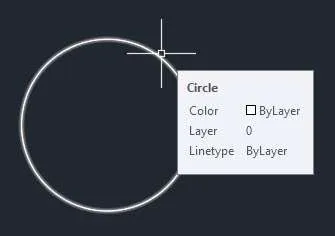
If the ROLLOVERTIPS system variable is set to 1 and you hover your cursor over an object in the drawing area then a tooltip will appear which will show a small list of the object properties.
Make this variable 0 to increase speed when working with large drawings.
EXPERT
The EXPERT system variable will suppress certain prompts and instead it will take the default value YES as the input.
The default value of this system variable is 0 but you change it as per your requirement.
0 – No suppression of prompts.
1 – Suppresses “About to regen, proceed?” and “Really want to turn the current layer off?” prompts.
2 – Suppresses prompts of variable 1, “Block already defined. Redefine it?” and “A drawing with this name already exists. Overwrite it?” prompts.
3 – Suppresses prompts of variables 1, 2 and prompts issued by LINETYPE command.
4 – Suppresses prompts of variables 1, 2, 3 and prompts issued by UCS save and VPORTS save options.
5 – Suppresses prompts of variables 1,2,3,4 and “That name is already in Use, redefine it?” prompt.
When a prompt is suppressed by Expert option the prompt will automatically take your input as Yes.
PEDITACCEPT
The default value of PEDITACCEPT system variable is set to 0 which allows Polyline Edit command to return a prompt as shown in the image below.

If the value of this system variable is changed to 1 then the default value “Y” will be accepted and this prompt will be suppressed.
LAYOUTREGENCTL
Changing this variable can improve the performance of AutoCAD by modifying the way drawing view is regenerated on changing tabs.
The default value of LAYOUTREGENCTL system variable is 2 but you can change it to 0 or 1 as well to improve its performance.
0 – The drawing is regenerated each time you switch tabs. (Maximum Performance)
1 – For the Model tab and the last layout made current, the display list is saved to memory and regenerations are suppressed when you switch between the two tabs.
For all other layouts, regenerations still occur when you switch to those tabs.
2 – The drawing is regenerated the first time you switch to each tab.
For the remainder of the drawing session, the display list is saved to memory and regenerations are suppressed when you switch to those tabs.
REGENMODE
When working with large drawings it is better to make the value of REGENMODE system variable to 0 to improve the performance by avoiding unnecessary automatic regenerations.
The default value is set to 1 which allows unnecessary regeneration in drawings thereby deteriorating performance.
SELECTIONPREVIEW
By default, the value of SELECTIONPREVIEW system variable is set to 3, which allows a preview of the object under selection when you hover your cursor over the object in the drawing.
You can change this value to 0 to avoid any object selection preview thereby improving the performance of AutoCAD.
In the image above the value of the system variable was set to 3 for the first circle and 0 for the second one.
DRAWORDERCTL
This system variable controls the display behavior of overlapping drawing objects when they are modified.
The default value of DRAWORDERCTL system variable is 3 which tends to slow the drawing editing process as it displays full draw order.
You can turn this off by changing it's system variable to 0 thereby enhancing the performance of AutoCAD.
You can also select other DRAWORDERCTL system variable modes as mentioned below.
0 – Turns off the default draw order of overlapping objects
1- Turns on the default draw order of objects
2 – Turns on draw order inheritance
3 – Turn on full draw order display
ISAVEPERCENT
This is one of the most underappreciated system variables in AutoCAD.
The ISAVEPERCENT system variable controls the amount of empty space in drawing when save operation is performed.
The default value of this system variable is 50 but you can increase the value of this system variable to speed up the drawing save operation.
70 lessons| Easy Level
If you are absolute beginner of AutoCAD then you can get started right from scratch using this free course.
A Large value of this system variable will increase empty space in the drawing resulting in the larger drawing file.
You can also decrease the value of this system variable or make it 0 to decrease the amount of empty space in the drawing but it will also increase the time taken in save operation.
But decreasing the value of this system variable has it's own advantages like it will improve compatibility of DWG files with other DWG compatible applications.
It will also reduce the size of DWG files due to less empty space thereby cleaning the AutoCAD drawing.
This will also avoid data loss caused by some antivirus programs that do not allow partial saves.
PALETTEOPAQUE
This system variable controls the transparency of palettes, to improve performance keep the transparency off or set the value of PALETTEOPAQUE system variable to 1.
The default value of this system variable is 0.
HPQUICKPREVIEW
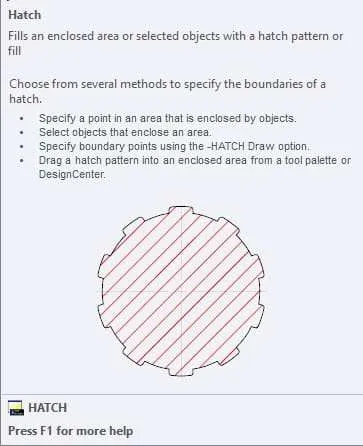
When working with large drawings the automatic preview of hatches can cause performance issues.
You can turn off automatic preview of hatches by changing the value of HPQUICKPREVIEW system variable to 0.
The default value of this system variable is 1.
HIGHLIGHT
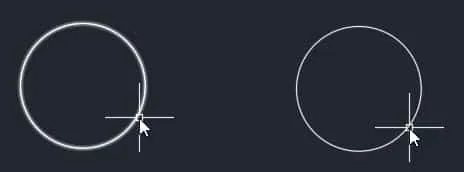
This system variable controls whether the selected object will be highlighted or not.
The default value of HIGHLIGHT system variable is 1 which allows objects to remain highlighted when selected.
You can change this system variable to 0 to stop highlighting objects when selected.
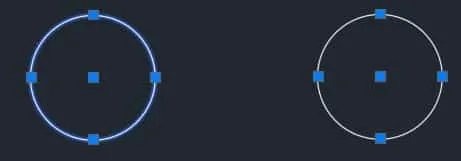
In the image above the value of HIGHLIGHT system variable was set to 1 in the first case whereas it was set to 0 in the second case.
Apart from using these system variables, you can also avoid some AutoCAD bad practices to ensure smooth performance of AutoCAD.
Do you have questions related to the article? Let us know in the comments below.