
With ARCTEXT express tool you can write curve text in AutoCAD which is aligned to an arc.
This tool can’t be used to write curve text along the spline, polyline or circle but there is a workaround that can be used to make a text curved along the circle.
In this article we will explore all those methods of writing curved text along arc in AutoCAD.
Writing text on Arc
To write curve text along arc type ARCTEXT on the command line and press enter.
Click on the arc on which you want to make your aligned text, if the arc is a part of Polyline then explode the Polyline and then select arc.
A new "ArcAlignedText Workshop" window will pop up.
70 lessons| Easy Level
If you are absolute beginner of AutoCAD then you can get started right from scratch using this free course.
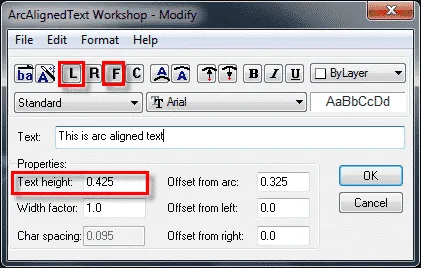
Enter the text which you want to align to the arc in the text field, I am using “this is arc aligned text” as the sample text.
Set text height to appropriate size depending upon the scale of your drawing from properties panel and click on the left align arc text button on the top to align it towards the left side of the arc.
Set the height of text as per your requirement using Text height field.
See image below for reference.
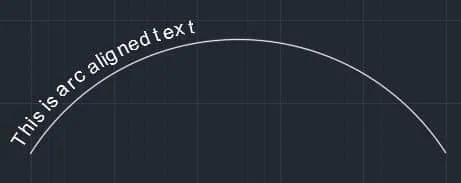
Now click OK to apply changes and exit this window.
Your arc aligned text will look like the one shown in the image below.
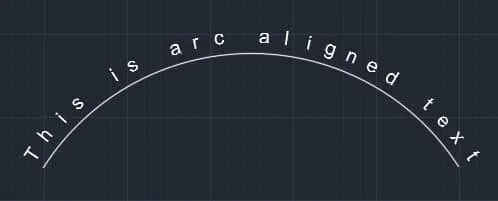
You can also align this text in such a way that it covers complete space on the arc.
For that type ARCTEXT on command line again press enter and click on the text which you created in the previous step.
The ArcAlignedText Workshop window will pop up again providing you an opportunity to modify this aligned text.
Click on F (fit along the arc) from buttons on top of this window and click OK to exit it.
Your text will now appear like this.
Writing text along a circle
This command allows you to curve text in AutoCAD only along an arc, so you have to use a workaround for making text along a complete circle.
Make an arc with an included angle of 359 degrees or more and then a text can be written along its boundary.
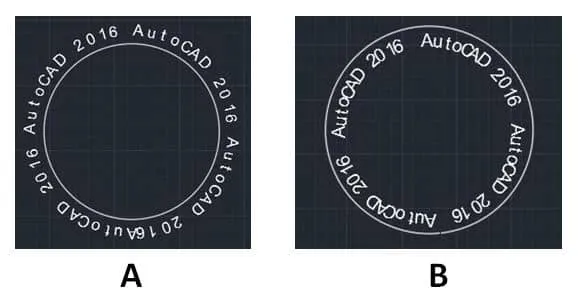
Here is the text I created along an arc with the angle of more than 359 degrees and later I replaced arc with a complete circle.
To make this text inside the circle select the option "concave text" from the "ArcAlignedText workshop" window.
The text on the concave side of the arc will look like image B as shown below.
Summary
So, that's how you can add text along an arc and in some ways "along a circle" as well.
If you have questions related to this tip then let me know in the comments down below.


How do I explode the text after i create the arc text? If I explode it, the font changes.
Hi HB
If you want to edit the text, then you can select the text and in the properties you can edit the content in the Arc text. Now if you want to explode then it will loose its properties thus loosing the font too!
COMMAND LINE DONT ACCEPT THIS COMMAND
Hi Aditya,
The Command Arc text will only get accepted if you have an existing Arc in the drawing. If you are trying to align it with a Circle, it wont work.
Can you please elaborate your query?