
In this article, I have listed six AutoCAD text related features which can be used to make your CAD workflow more productive.
These features are usually quite overlooked but when used in the drawing can reduce your drafting time significantly.
TEXTFIT
This command can be used to change the width of text to fit it in the required space like title block or inside small objects of drawing keeping its height unchanged.
This command works only for single line text.
Type TEXTFIT on the command line and press enter.
Your cursor will change to a pickbox, click on text for which you want to change the width and specify new text width dynamically using your cursor or by entering width on the command line.
70 lessons| Easy Level
If you are absolute beginner of AutoCAD then you can get started right from scratch using this free course.
TEXTMASK
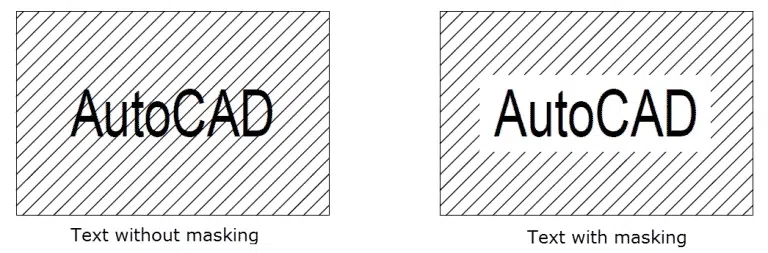
As the name suggests this command will create a mask around text to make the text clear against the background.
This feature can be used at places where you want to write text over hatches, gradients or drawing objects.
To start this command type TEXTMASK on the command line and press enter.
Now click on text (Mtext or single line text) on which you want to apply mask and press enter again.
The area under text will be cleaned to make text clearly visible against the background.
You can also change area which is cleaned around text using Wipeout Offset.
Type WIPEOUT on the command line and press enter then click on the offset option from the command line.

Command line will prompt you to enter offset factor.
If you enter offset factor of 1 the wipeout distance around text will be equal to the height of text.
Similarly an offset factor of 0.5 will create a wipeout distance around text equal to half of text height.
Select appropriate text offset value and press enter to continue.
To make frame appear or disappear around the text mask use WIPEOUTFRAME system variable and toggle it's value to 1 or 0 respectively.
To remove masking around text use TEXTUNMASK command and click on text on which masking is applied then press enter.
TEXTTOFRONT
In order to bring all text from your drawing on top of other entities, you can use this command.
Type TEXTTOFRONT on the command line and press enter then select text from options of the command line.

All text entities i.e. Mtext and single line text will appear in front of every other entity.
This is especially useful in cases where your text is overlapped by polylines containing width or gradients that hide text.
Using this command you can also bring other entities like dimensions and leader lines to the front by selecting "All" from options of the command line.
MIRRTEXT
Mirroring text is not similar to mirroring objects in AutoCAD.
If you try mirror command for mirroring text you will get a copied text at mirrored distance from mirroring line which is not laterally inverted as shown in the image below.

You need to change the value of MIRRTEXT system variable to 1 for making mirrored copies of Text and Mtext so that they are laterally inverted just like a mirrored copy as shown in the image below.

Importing text
If you have long paragraphs of text which you want to import in AutoCAD then this tip is for you.
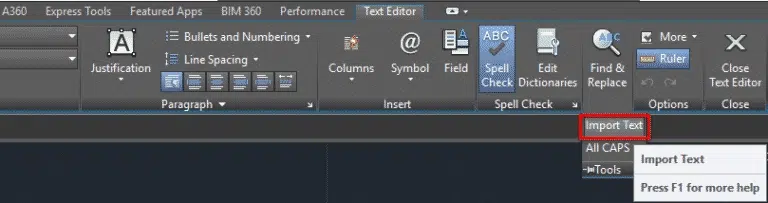
Start MTEXT and select import text from text editor ribbon as shown in the image below.
Locate TXT or RTF file from the open window and click OK to import that text in your drawing.
You can add formatting to text after importing it in AutoCAD from notepad.
If your text contains formatting in RTF file then those formatting will be retained even in AutoCAD.
Converting text to Mtext and vice versa
Using this express tool you can convert single or multiple lines of text (DTEXT) into Mtext with a single click.
Type TXT2MTXT on the command line and press enter, select text from your drawing and press enter again.
Your old text lines will be deleted and it will be replaced with single Mtext.
In order to convert Mtext to Text you can use explode command.
Select Mtext then type X on the command line and press enter to convert Mtext to text.
70 lessons| Easy Level
If you are absolute beginner of AutoCAD then you can get started right from scratch using this free course.
Importing from Word file
You can import text with it's formatting from an MS Word file but the import text option, as shown above, recognizes only TXT and RTF format so you need to convert word file (.DOC) into an RTF file before importing.
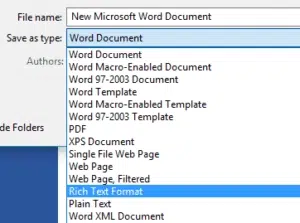
To convert a word file into RTF (rich text format) file open it in MS word then select save as option from the File menu and choose Rich Text Format from format drop-down menu in the Save as window as shown in the image below.
Now start MTEXT command again and select Import Text from tools panel of text editor tab.
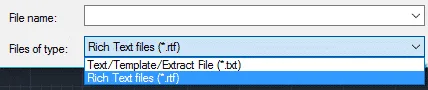
This time, change the format to RTF from the Open window as shown in the image below.
Select the RTF file and click on Open, your text will be entered with all its formattings in AutoCAD.
Apart from these methods, you can directly import a table from an excel file to AutoCAD as a data link and also as a standalone drawing entity.
Summary
So, these are the selected AutoCAD text related tips.
If you have a tip you want to share with us then let us know in the comments section down below.